Verification codes going to your other phone? Here's the fix
You're logging in to your bank on your laptop. "We've sent a code to your phone." Which phone? The other one, of course, the one in your bag, in a drawer or at home.
If your bank, your delivery apps or your work accounts are tied to a number that lives in a second phone, one-time codes become a daily annoyance. Here's how to fix it without weakening your security.
Why you can't just change the number
The obvious fix is to move every account to your iPhone's number. Sometimes that's possible. Often it isn't:
- banks may require a branch visit to change the registered number,
- some services only accept the number you signed up with,
- a work line belongs to your employer,
- and the second number may be the one everybody already has.
What not to do
- Don't forward codes to email or chat. One-time codes are meant to prove you hold the phone. Sending them through other services spreads them around.
- Don't use a random "virtual number" app for important accounts. Many banks reject virtual numbers, and you don't control who runs them.
- Don't share your codes, ever, with anyone who calls or texts asking for them.
The clean fix: see the other phone's texts on your iPhone
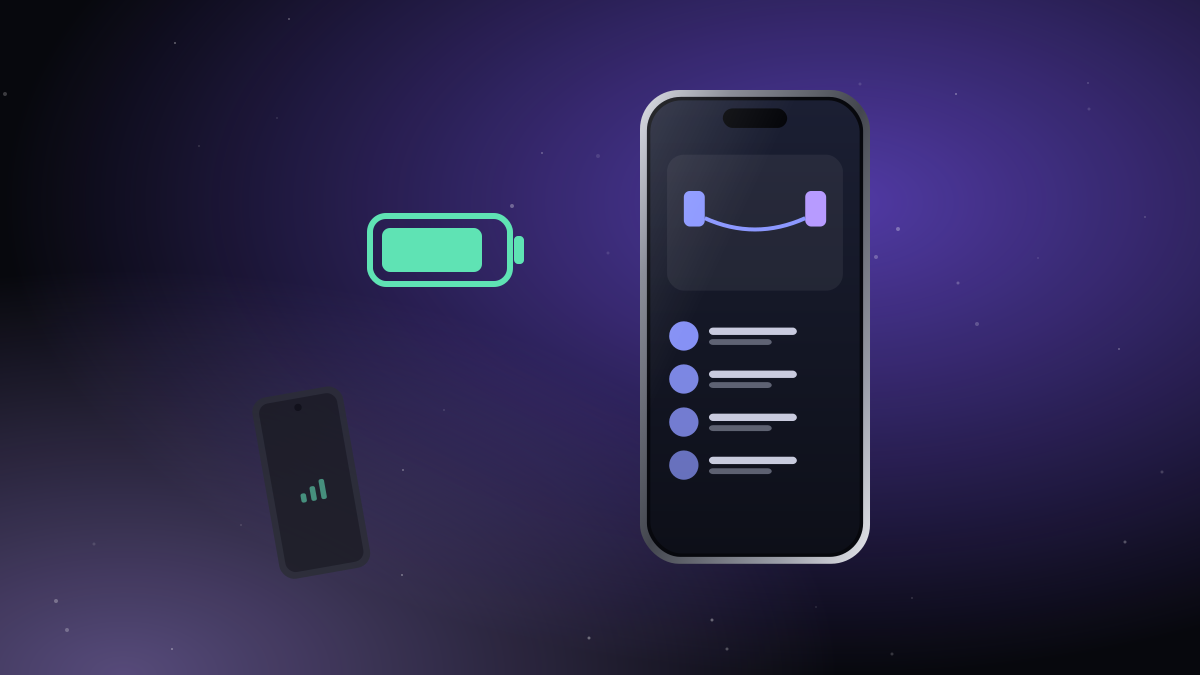
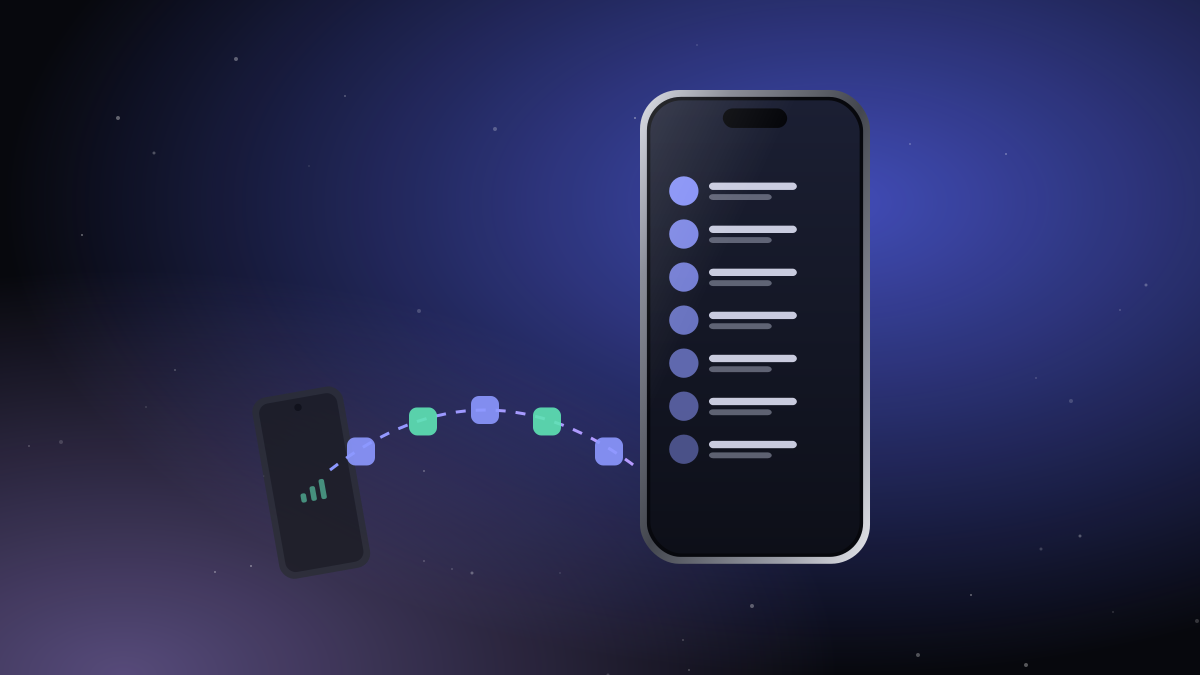
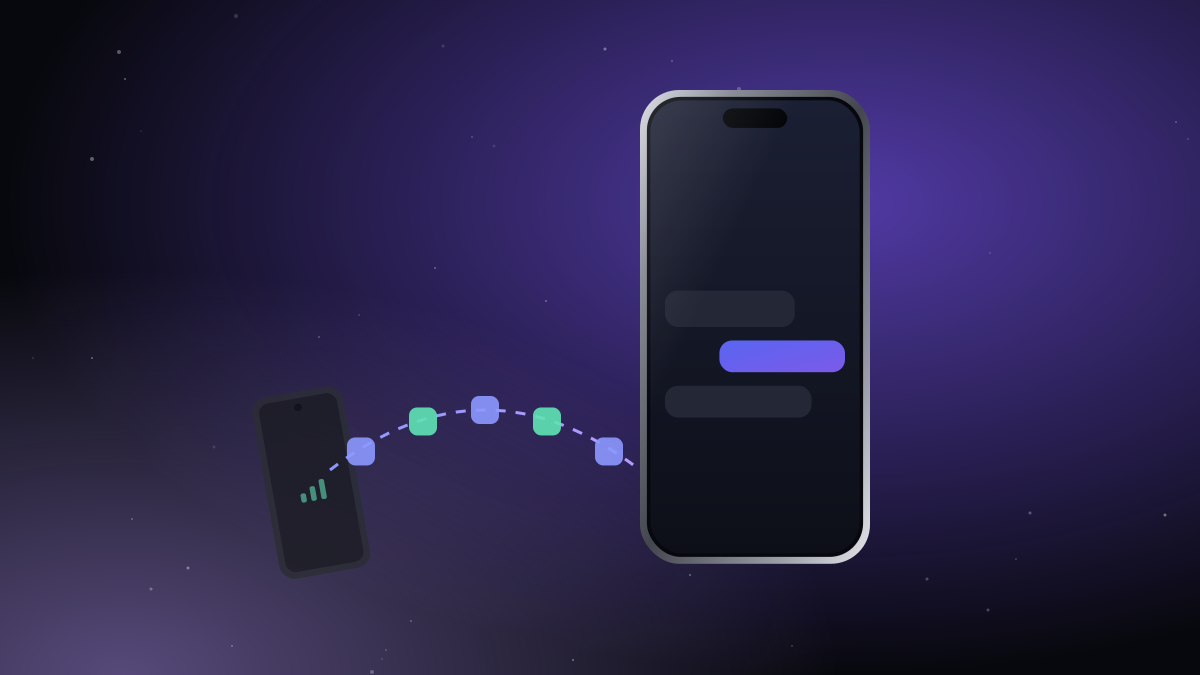
With iTell, the SIM stays in the Android phone, so the code still goes to the number it should. The Android phone passes the text to your iPhone over an encrypted Bluetooth link, and:
- the text arrives on your iPhone with a notification,
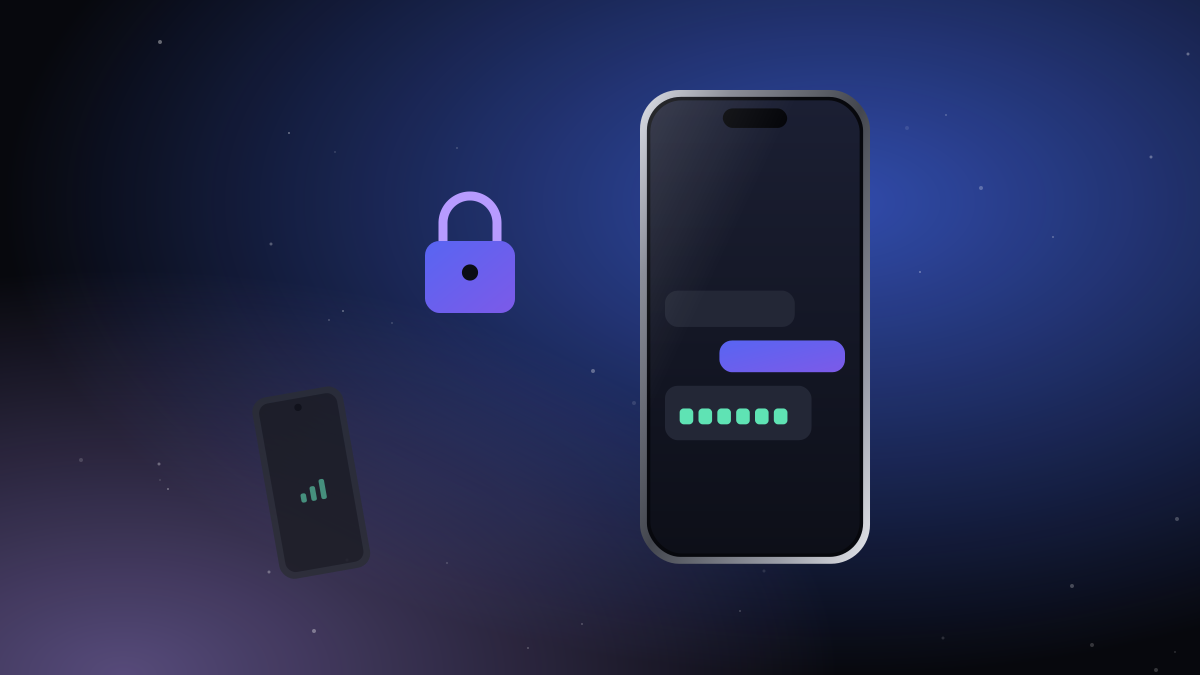
- you read the code right there, on the phone in your hand,
- and type it where it's asked for. The bag stays closed.
The code never leaves your two phones. There's no server in between and no internet involved, which is exactly what you want for a secret that's valid for five minutes.
A few habits that help
- Keep the Android phone within Bluetooth range when you expect a code: a bag or a desk drawer is fine.
- Turn battery saver off for iTell on the Android phone, so texts are passed on instantly.
- If a code doesn't arrive, check that the iPhone shows the link as connected (Settings tab in iTell).
Codes are only as safe as the phone that receives them. Keep a screen lock on both phones.
More on how the link is protected: our security page.

Create an account, install both apps, pair them once. That's the whole setup.
See how it works Get started